

 Varad
VaradHow to Assign Material Ledger Types to Valuation Area in SAP S/4 Hana
After the configuration of the Assignment of currency types and Material Ledger Types, the next configuration step is the assignment of material ledger types to the valuation area in the SAP S4 Hana system. The link between Material Ledger Type “1000” and Valuation Area AP01 will be established through the assignment of Material Ledger Type to the Valuation Area in SAP S4HANA.- Transaction Code: OMX3
- IMG path: SAP Reference IMG > Controlling > Product Cost Controlling > Actual Costing /Material Ledger > Assign Material Ledger Types to Valuation Area in SAP S4 HANA.
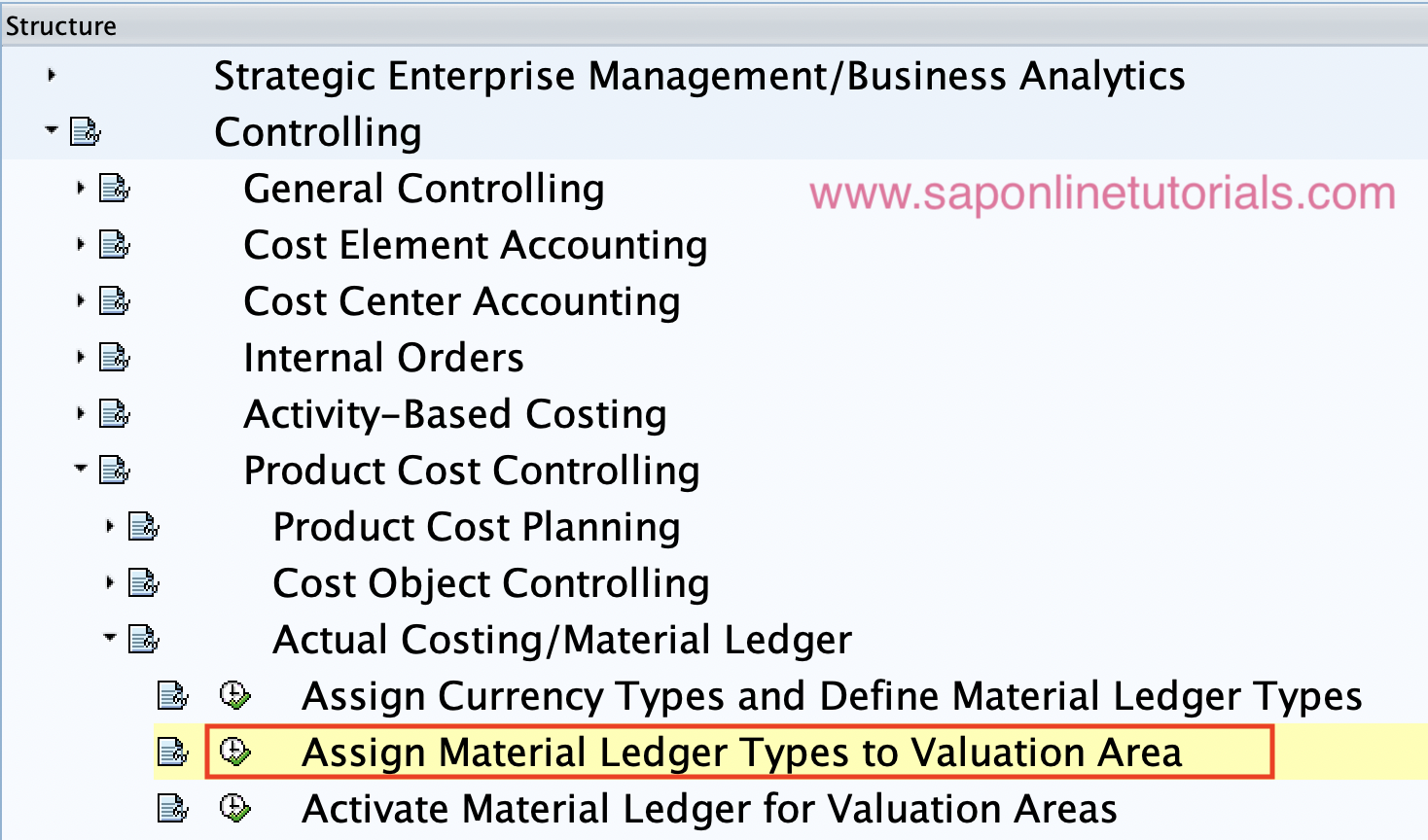 Step 2: On the change view “Assignment of Material Ledger Types to Valuation Areas” screen, click on the “New Entries” button
 Step 3: On the new entries screen, update the following details
- Valuation Area: Update the valuation area key (Plant key).
- Material Ledger type: Update the material ledger type key for assignment to the Valuation area.
- The status will be automatically turned on to a Green color.
 Click on the save icon and save the configured details.
Note: IF the status is in red color status, follow these steps
IMG path: Financial Accounting > Financial Accounting Global Settings > Ledgers > Ledger > Define Settings for Ledgers and Currency Types.
Click on the save icon and save the configured details.
Note: IF the status is in red color status, follow these steps
IMG path: Financial Accounting > Financial Accounting Global Settings > Ledgers > Ledger > Define Settings for Ledgers and Currency Types.
- On the Change View “Ledger” overview screen, select the leading ledger “OL” and double click on “Company Code Settings for the Ledger”
- Click on position and enter your company code
- Check the Local Currency Type and Global Currency Type.

- Click on the save button.

Also Read | SAP classes in Pune
Also Read | SAP classes in Pune
Also Read | SAP classes in Pune
Also Read | SAP classes in Pune