
 Varad
Varad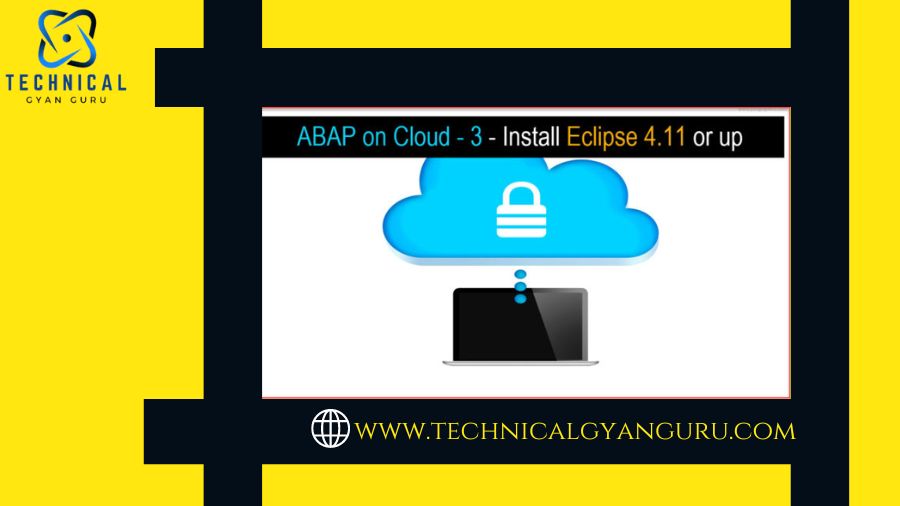
The creation of a SCP trial account and a service key were the topics of the last two tutorials. The subsequent procedures for installing the Eclipse Platform, which acts as the ABAP on Cloud Integrated Development Environment (IDE), will be covered in this article.
Given the diverse backgrounds of the audience, it is important to comprehend a few nuances in each of the specialized fields:
SAP ABAP/Functional: NO T-Code use in ABAP Cloud and NO GUI Screens.
No longer must they be recalled or used. Some examples of often used ones are SE11, SE80, SE24, SM30, SU01, ST12, MM01, ME21, VA01, etc.
- OData Consultants: Forget about central hub systems, RFC destinations, registration of services, gateway services, and T-Codes, among other things.
Indeed, the admin must create this one-time activity even though the destinations are predetermined in the SCP.

After installing JDK and Eclipse, it’s time to open Eclipse.
See Also: SAP Fiori ABAP Programming Model – 1 – Overview
To see the screen that is displayed below, double-click the desktop icon or launch from the Start menu:

Development objects can be given a workspace by using the screen above.
Simply select “Launch.”
Note that the menu bar labeled “Help” has a drop-down list. Press it.

Select “About Eclipse.”

5. Verify that the version is 4.11 or greater.

6. Use the same “Help” drop-down menu to select “Install New Software.

7. A new pop-up window appears with the placeholder value “type or select a site” at the top of the “Work with: Section.

8.After selecting “Add,” enter the following links in the new pop-up box according to the version.


9. After selecting “Add,” the screen below appears:

10. As indicated, choose every instrument that is relevant:
Press the “Next” button.

Select on “Next”.
11. Every component listed as “To be Installed” is visible:

12. Click “Finish” to begin downloading the necessary tools after agreeing to the terms.

13. Watch the Eclipse IDE’s right bottom and wait.

14. As demonstrated, a successful installation produces a pop:

15. Select “Restart Now” and watch for the IDE to reopen.
16. Select “Other” by using the navigation as indicated below:

17. After choosing “ABAP,” click “Open.

18. The ABAP icon is displayed in the upper left corner. Press the button.

19. Note that the project explorer space now has “Create an ABAP Cloud Project” marked.

20. Additionally, the “Release Notes” are essential for verifying that the project is using the most recent ABAP Environment releases.
The setup for learning ABAP on Cloud Hands-On is now complete. We’ll discuss the completion of the ABAP Cloud using the service key we generated in the previous post in the following one.
I recognize that you are eager to develop your first cloud-based ABAP program. My friend, please be patient. We can’t wait to present our first ABAP code in the cloud. We assure you that patience bears sweet fruits. We’re about to write our first ABAP program on the cloud.